Justin Tung

Information Technology and Communications Maven

Statistics


Leave a comment

Service Level Metrics for Middleware and Server Performance Monitoring


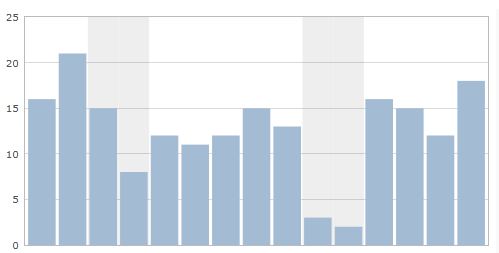
Below are examples of metrics and measures  that are common when looking at IT infrastructure, middleware, and server performance.

Why People Use These Metrics

These metrics are useful when:

  • Considering service level metrics for infrastructure hosting providers and applications.
  • What to charge clients based on usage of infrastructure services.
  • Quality, stability, and capacity of infrastructure services

Metrics

  • Disk space utilization (we want to check utilization and growth over time). Check space utilization on specific partitions like ones for log files and critical application server files
  • Number of middleware related incidents (errors, problems, etc.) and source of incidents (monitoring, clients, users, etc)
  • Throughput of requests
  • Up time
  • Input / Output – bytes received/transmitted per second
  • Usage thresholds for various performance measures related to CPU, memory, disk, network, failed transactions
  • CPU, memory, disk, network, failed transactions (%) over time
No Malware On Windows


Leave a comment

Removing viruses, trojans, and other malware from your Windows computer

These steps are easy when you know exactly when your Windows computer  has been infected (e.g. inserting a USB stick, visiting a website with malicious software on your browser).

At the time of infection or shortly after infection, perform the following steps:

  1. Immediately turn off your computer and unplug it from the network / internet (remove the network cable or if you are using wireless, try to turn off the wireless connection / router – if you are not sure, just leave it).
  2. Reboot Windows and go into safe mode. You only need the basic safe mode without any networking, etc.
  3. To get into the Windows Safe Mode, as the computer is booting press and hold your “F8 Key” which should bring up the an options menu as shown below. Use your arrow keys to move to “Safe Mode” and press your Enter key. More information on safe mode can found on the Microsoft site by searching “Windows safe mode” along with your version of Windows.
  4. Use the Microsoft system restore to restore your computer to an early point before the infection began. This restore will revert system changes done by the virus, trojans, and other malware. The restore does not impact the “My Documents” and personal settings, so keep that in mind if you saved infected files to My Documents folders.
  5. System restore may be found differently depending on your version of Windows. The easy way is to use the built in Windows help (F1) in safe mode and search for system restore to find the program. If on Windows Vista/7, use the search on “restore system”. There are also instructions off the Microsoft site.

Sources:

Gimp On Ubuntu


Leave a comment

Helpful GIMP Tips and Tutorials


About GIMP and Inkscape

GIMP is a raster/bitmap graphics tool and Inkscape is a vector graphics tool. Together they meet most graphics needs in photo/image manipulation and creation of scalable graphics and offer free/open source alternatives to Adobe Photoshop and Illustrator.

Answers to Common Questions on:

  • Drawing simple shapes
  • Layer manipulation
  • Combining images and photos
  • Application of filters
  • Image Enhancement
  • Opening and Transforming Files

The first stop for new users or people seeking reference documentation should be the GIMP manual available in various languages. It is easy to read with highlights for users and plenty of pictures to indicate what you should see while using the tools.

Basics

Fading parts of images to white (or other colours)

  •  The fade effect - Fade parts of images to image or other colours via layer masks and Gaussian blur.

Making collages

Image Enhancement

These techniques can be helpful for post-processing (PP) of images and photos or highlight elements. Of course with photos it is best to take a good photo so you don’t need much PP!

  • Contrast Mask - Control contrast in an image (e.g. brighten dark areas in an image, bring out more highlights in dark areas/shadows)
  • Selective Colourization – Take a colour photograh and make certain parts of it black and white, while other parts retain their colour. This method is used to highlight portions of a photo with colour to bring attention to it, while other parts are black and white or have some other filter applied.

Text Manipulation

Opening and Transforming Files

Follow

Get every new post delivered to your Inbox.